
You can now show buyers your product's measured 3D field on your own website.
When a buyer asks what your device's field actually does, a photo and a single Gauss value don't answer the question. Once we've tested your device and accessory, you can put the interactive 3D view of its measured field straight onto your product page by pasting one line of code from your customer portal. The viewer keeps running here at Gauss Labs and your page simply frames it, so it stays current as new tests are finalized, and your visitors can turn the field, cut it open, and watch it pulse on the waveform we captured. What they see is the measured field itself, while the report, the downloads and the underlying test data all stay in the lab.
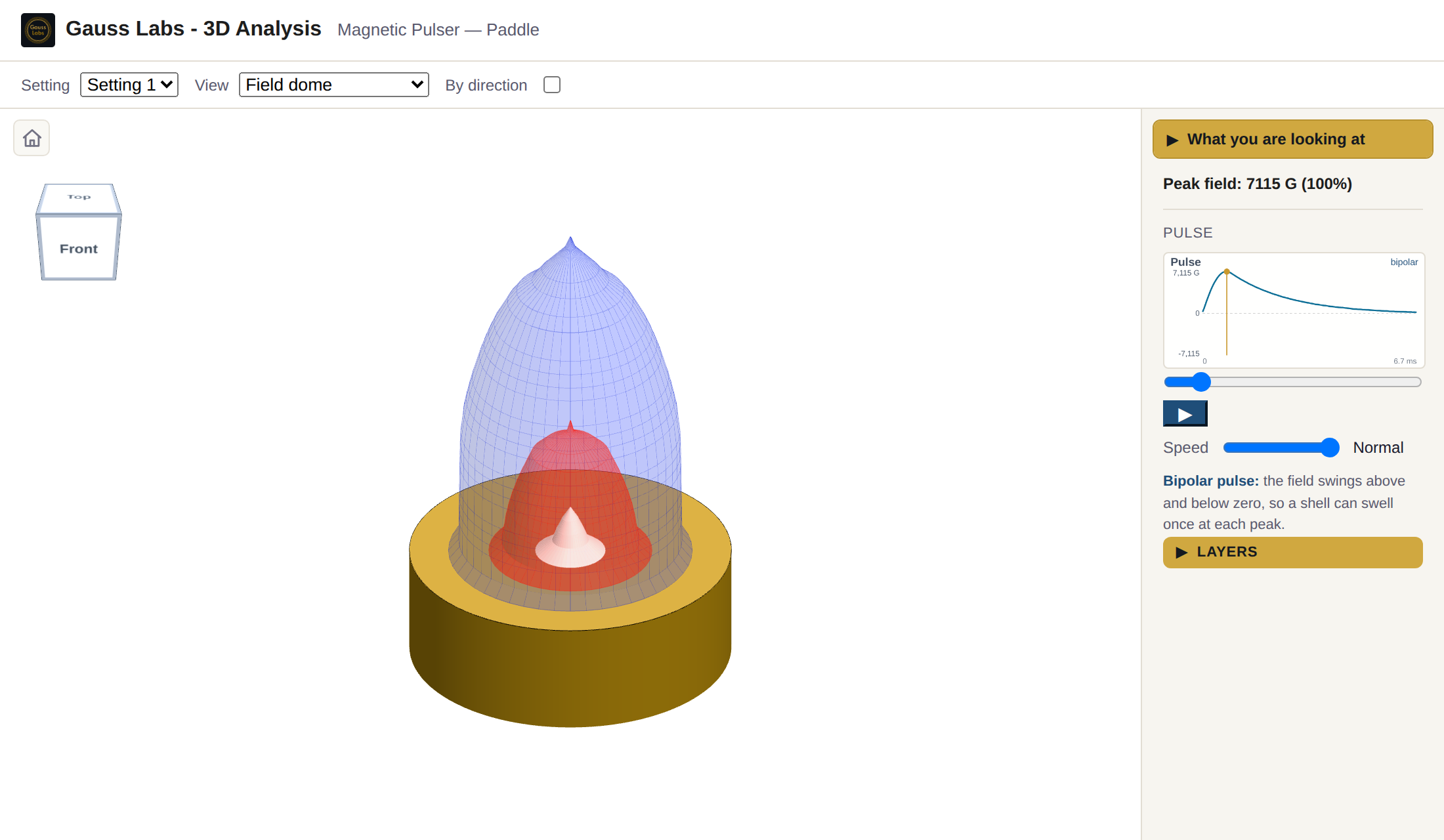
Your buyers get the same view you get, without signing in.
Until now the 3D view lived behind the portal sign-in, where only you and your team could open it. That was the right place to start, but the people who most need to see the field are the ones deciding whether to buy, so the embed moves the same view onto your page without asking them to sign in for it. They can drag to rotate, scroll to zoom, switch between your settings, and press play to watch the field swell and collapse on your device's own measured pulse, time-scaled since a real pulse lasts microseconds.
The examples on this page come from a Sota Instruments Magnetic Pulser Paddle we purchased for in-house testing, so we didn't make this one, we measured it. Its field peaks at 7,115 G at the surface, stays above half of that out to 3.1 cm (1.2 in), and still holds a tenth of it at 7.5 cm (3 in). Those are the values in the viewer's legend, measured in our lab along four directions and at several heights above the accessory rather than taken from a datasheet. A visitor reading your page sees exactly the same values, since the viewer draws your test's own scan.
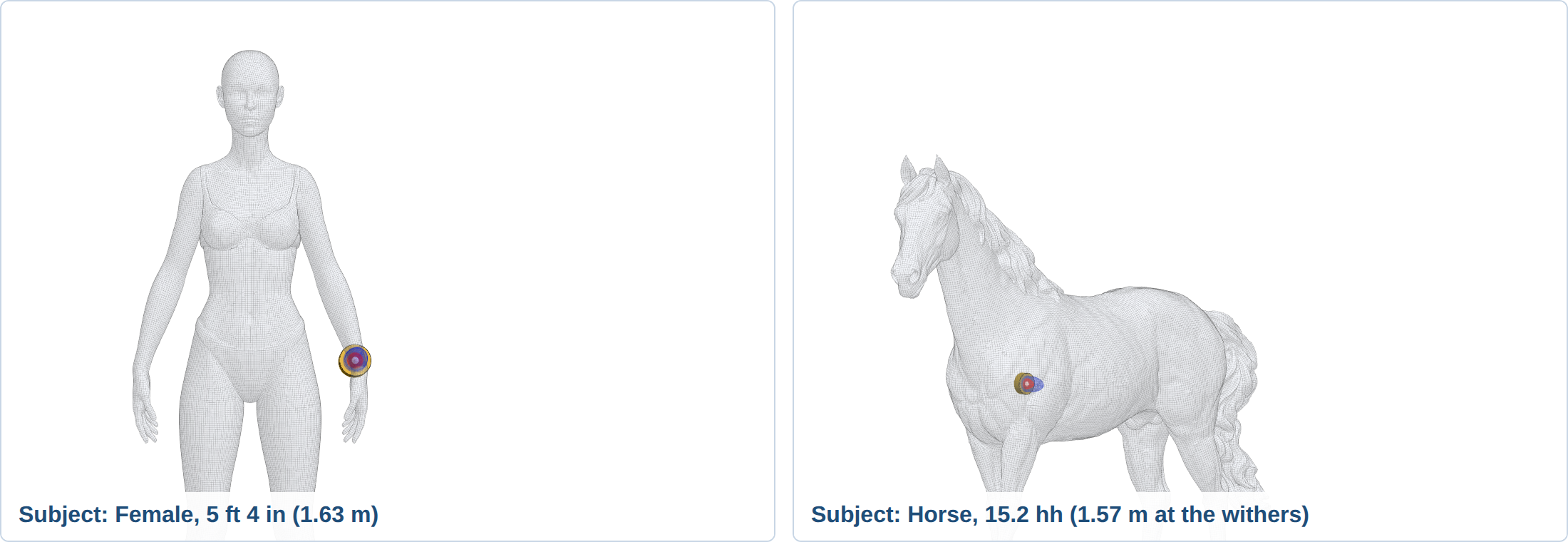
You choose whether each product appears on a person or a horse.
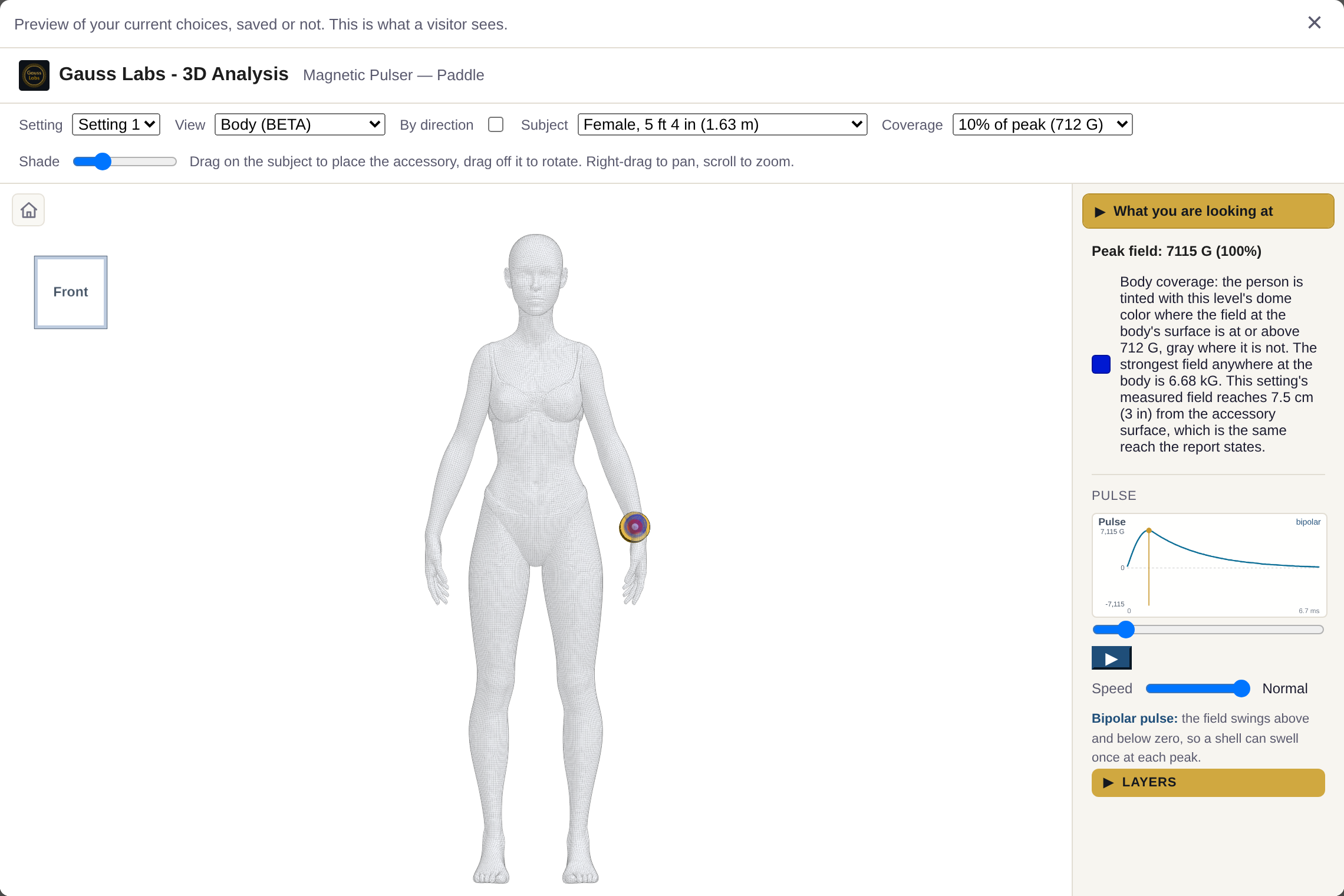
The Body view sets your accessory on a person or a horse and tints the body where the field reaches, so the subject is yours to choose for each product separately. If you sell to people, a horse in the picker makes no sense, and an equine company has no use for a person. A manufacturer selling the same system into both markets can offer people on one product, a horse on another, and both on a third.
Nothing shows in the embed unless you turn it on.
Everything is set from one card in your portal, where you tick the views you want to offer: the field dome, the Body view, the cross-section, the topographic map, and for a mat the coverage canopy and the measured data. Letting visitors save a still image or the looping animation is off unless you turn it on, so nothing leaves the viewer by default. If you ever want the embed gone, one button disables it and visitors see a short note in its place. The same code starts working again the moment you turn it back on.
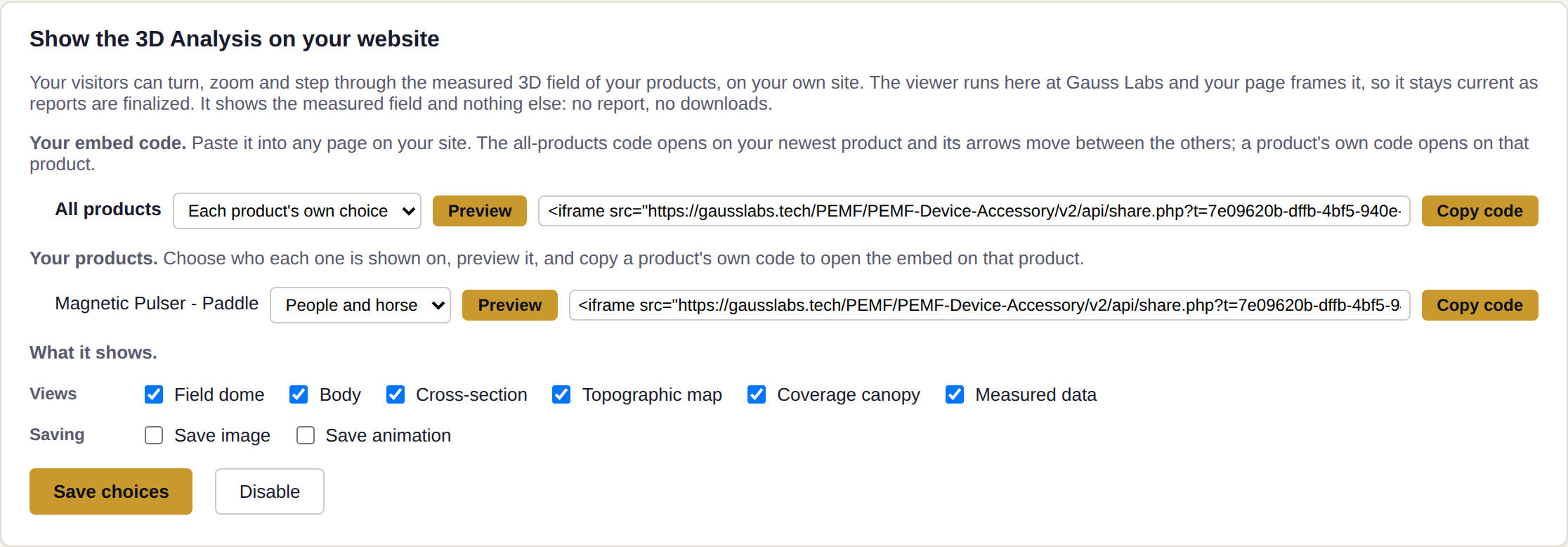
Preview opens the embed right on the card, built from the choices as they stand whether or not you have saved them, so you can untick a view, press Preview, and see what a visitor would get before you commit to it. Beside each product sits the complete code, ready to paste into any page. It is an iframe, the small block of code that frames one page inside another, so it drops into your site's page editor like any other embed and the viewer is live.
A top-down view hides how high a mat's field reaches.
A mat is a different object from a disc, so it reads better from a different first angle. Every 3D view of a mat, in the portal, in the public examples, and in the embed, now opens at a three-quarter angle, and from there the coil-by-coil domes, the gaps between them, and the person lying on the pad all read at once.
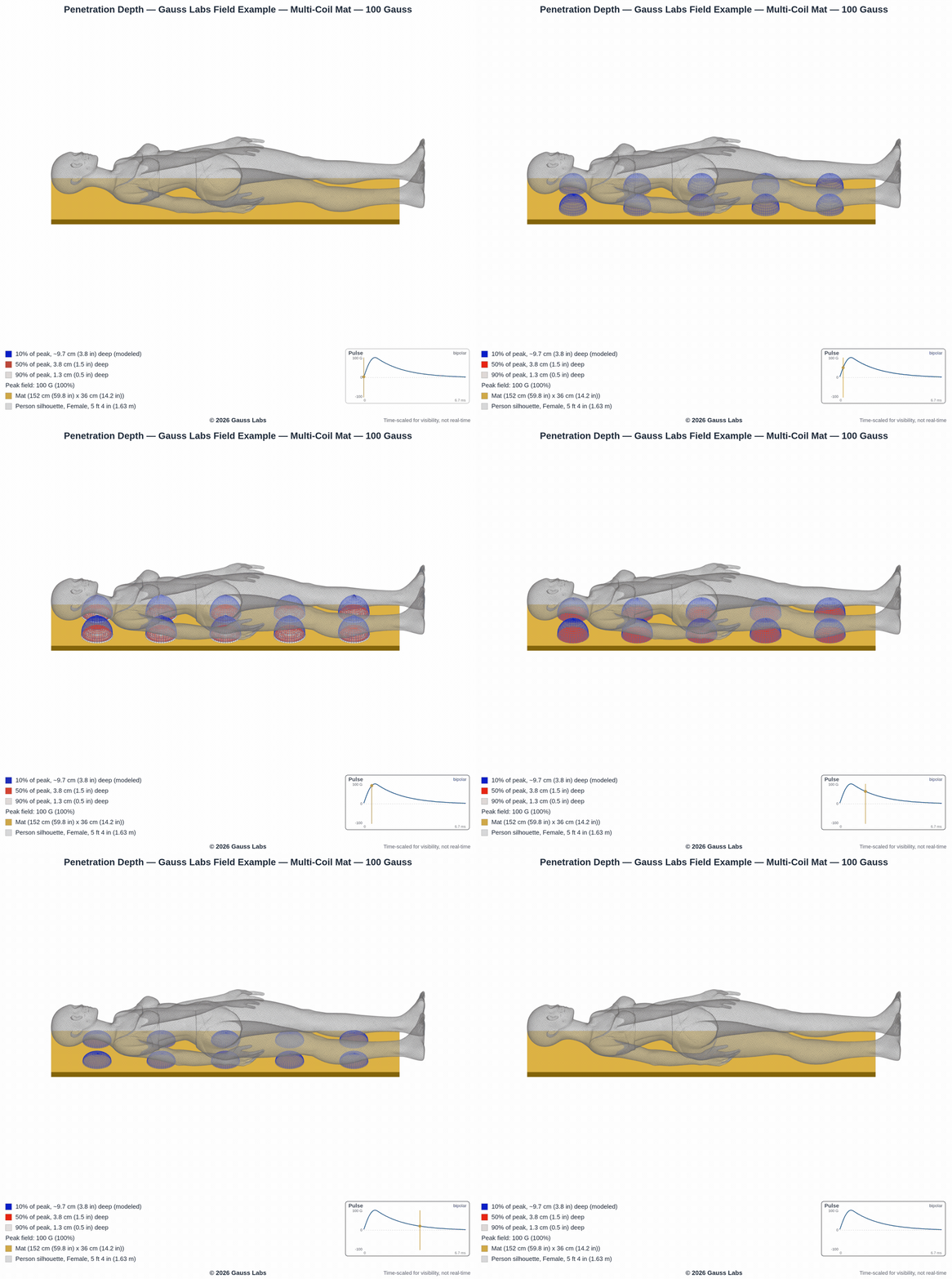
Putting it on your page takes five steps.
You need a finalized test measured at more than one height above the accessory, since that is what gives the viewer its depth. Every product that qualifies appears on the card automatically.
- Sign in to your customer portal and find the card titled Show the 3D Analysis on your website.
- Choose the subject for each product: people, horse, or both.
- Press Create embed code.
- Tick the views you want to offer and whether visitors may save an image or animation, then press Preview to see it.
- Press Save choices, copy a product's code (or the all-products code), and paste it into your page.
Change your mind later and the code you already pasted keeps working. The viewer reads your current choices every time it opens, so an update on the card reaches every page that frames it without touching your site again.
Everything here starts with one measured scan.
If you haven't worked with us yet, you can open the public 3D field examples for the common coil types and get a feel for what your buyers would be looking at. When we test your device and accessory, that scan becomes your report, your certification when the pairing earns it, and now a viewer you can hand your buyers on your own site.
Want your measured field on your product page?
Tell us about your device and accessory and we'll scope a test, or open an example report first to see what the scan produces.
Schedule a Call See Example ReportsA spec sheet asks your buyer to take your word for the field. An embedded scan lets them turn it around and look.